Logging is a critical aspect of application development.
It offers visibility into how an application behaves, making it essential for debugging, monitoring and long-term maintenance.
It supports real-time monitoring by capturing events and system behavior as they occur.
Effective logging helps us understand what happened, when it happened and why, enabling us to find faster root cause of failure.
However, traditional plain-text logs can be hard to query and analyze at scale.
The solution is structured logging, which formats logs as structured data, making them machine-readable, searchable and easier to work with.
Serilog
Serilog is an amazing logging library for .NET that allows us to write structured, high-quality logs with minimal setup.
Unlike traditional text-based logging, Serilog captures logs as key-value pairs. This makes logs easier to search, filter and analyze in log management tools like Seq, Elasticsearch etc.
It offers enrichers that automatically add context like thread id, request id and more to every log entry.
Serilog also supports "sinks". Sinks are output targets like console, files, databases, cloud services etc.
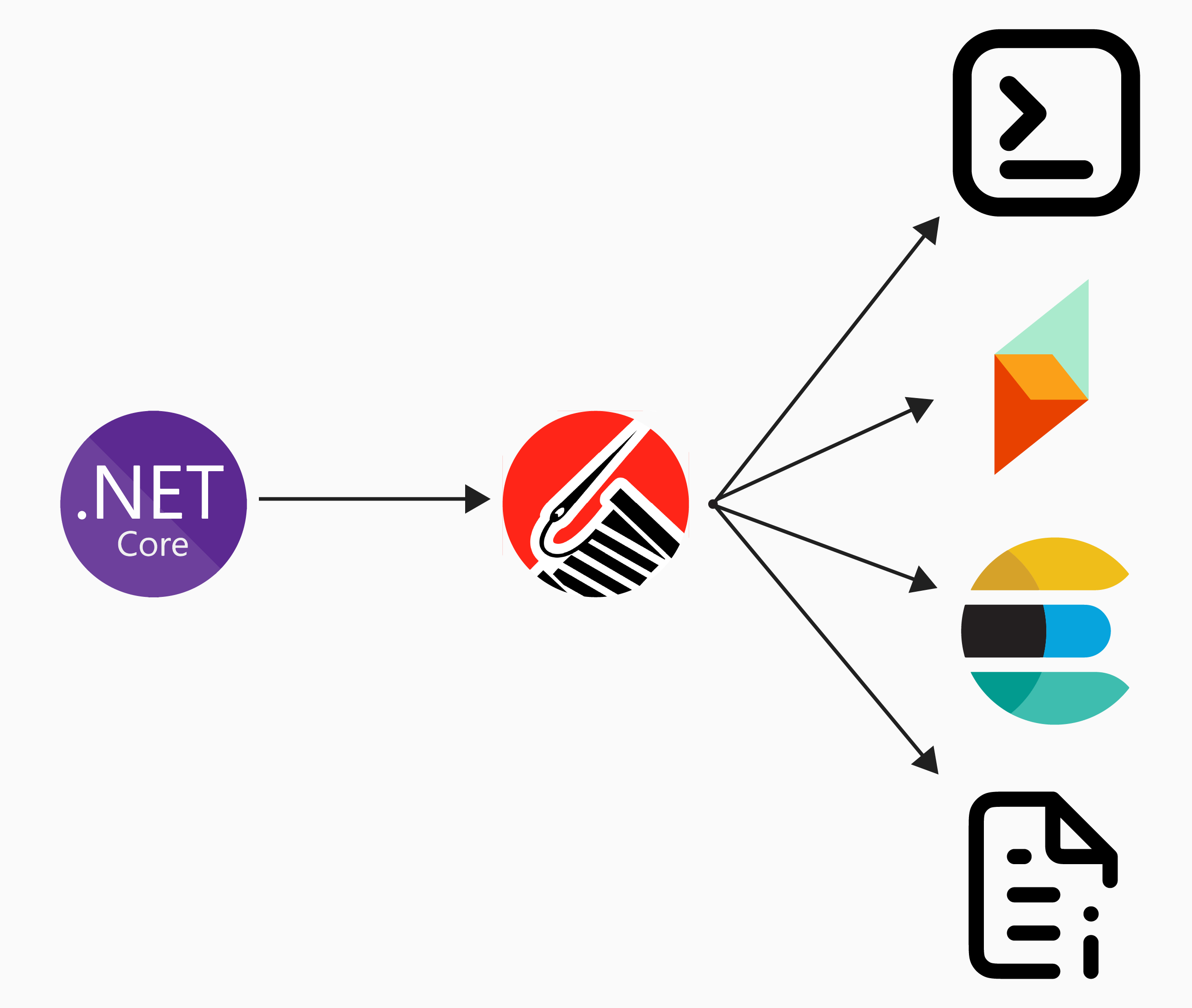
Basically, sink is a destination for your logs. Every time you write a log event using Serilog, it gets sent to one or more sinks that you configure.
In todays blog post I will cover how to setup and configure Serilog for structured logging.
Getting Started
To get started with Serilog, you'll first need to install the necessary NuGet packages. You can do this via the NuGet Package Manager or by running the following command in the Package Manager Console:
dotnet add package Serilog.AspNetCoreTo begin using Serilog, you need to integrate it into your dependency injection setup. This is easily done by calling the UseSerilog method on the HostBuilder:
builder.Host.UseSerilog((context, configuration) =>
{
    // ...
});
UseSerilog takes a lambda expression that allows you to configure Serilog with full access to the host context and the Serilog LoggerConfiguration.
In the next sections, we'll explore how to configure Serilog to align with best practices and tailor it to your specific needs.
Additionally, you can enhance HTTP request logging by adding middleware that provides smarter HTTP request logging.
app.UseSerilogRequestLogging();Instead of writing HTTP request information like method, path, timing, status code and exception details in several events, this middleware collects information during the request and writes a single event at request completion.
Configuring Serilog in Program.cs
To configure Serilog, one common approach is to define the logger settings directly within the UseSerilog method during host configuration.
You can specify various options such as the minimum log level, enrichers, sinks and more.
builder.Host.UseSerilog((context, configuration) =>
{
    configuration
        .MinimumLevel.Information() // Set minimum log level to Information
        .Enrich.FromLogContext()
        .Enrich.WithProperty("App", "NikolaTech")
        .WriteTo.Console()
        .WriteTo.File("logs/log.txt", rollingInterval: RollingInterval.Day);
});- MinimumLevel.Information - Set minimum log level to Information
- Enrich.FromLogContext - Add contextual info like request ID
- Enrich.WithProperty - Add custom property for all logs
- WriteTo.Console - Add output to console
- WriteTo.File - Add output to file with daily rotation
I'm a big fan of fluent syntax, but when it comes to configuring Serilog, I prefer a different approach, using appsettings.
Configuring Serilog in appsettings
Using appsettings to configure Serilog is my preferred approach because it makes it easy to adjust logging settings based on the environment or specific requirements.
This setup also allows for changes without touching the code.
In Program.cs, you simply need to configure Serilog to read its settings from appsettings:
builder.Host.UseSerilog((context, configuration) =>
    configuration.ReadFrom.Configuration(context.Configuration));
This will instruct Serilog to bind to the Serilog section in your configuration by default.
NOTE: If you want to use a custom section name, you absolutely can, just provide Section where config is defined.
Serilog section in itself should look like this:
{
  "Serilog": {
    "Using": [ "Serilog.Sinks.Console", "Serilog.Sinks.File" ],
    "MinimumLevel": {
      "Default": "Information",
      "Override": {
        "Microsoft": "Warning",
        "System": "Warning"
      }
    },
    "WriteTo": [
      { "Name": "Console" },
      {
        "Name": "File",
        "Args": {
          "path": "logs/log.txt",
          "rollingInterval": "Day"
        }
      }
    ],
    "Enrich": [ "FromLogContext", "WithMachineName" ],
    "Properties": {
      "App": "NikolaTech"
    }
  }
}
Using specifies which assemblies contain the sinks you’re using.
MinimumLevel - Defines the lowest log level Serilog should process.
WriteTo - Lists sinks where logs will be written.
Enrich - Adds extra context to all log events.
Properties - Adds static key-value properties added to every log.
Structured Logging in Action
Finally, once Serilog is configured, you can start using it in your code.
It's straightforward because Serilog is using Microsoft's ILogger interface, you just need to inject ILogger and you are ready to go:
app.MapDelete("products/{id}", async (
    Guid id,
    AppDbContext dbContext,
    ILogger<DeleteEndpoint> logger,
    CancellationToken cancellationToken) =>
{
    var product = await dbContext.Products
        .FirstOrDefaultAsync(x => x.Id == id, cancellationToken);

    if (product is null)
    {
        logger.LogError("Product with {id} not found", id);

        return Results.NotFound();
    }

    dbContext.Products.Remove(product);

    await dbContext.SaveChangesAsync(cancellationToken);

    logger.LogInformation("Product with {id} successfully deleted", id);

    return Results.NoContent();
}).WithTags(Tags.Products);
It's that easy because ILogger is just the abstraction for logging providers like Serilog and others.
You can log messages with different severity levels (Information, Error, Warning etc.).
You can also pass structured data as arguments to the log methods and that will help you querying logs in your log storage system.
Conclusion
Structured logging is a powerful and essential practice when building applications.
By using tools like Serilog, we can easily configure and manage logs. Using appsettings.json for configuration makes it easy to manage logging settings.
With Serilog, you can specify sinks, enrichers and log levels making it easier to query and analyze logs.
If you want to check out examples I created, you can find the source code here:
Source CodeI hope you enjoyed it, subscribe and get a notification when a new blog is up!