Connect database to AI with Devart MCP in ASP.NET Core
Special Thanks to Our Sponsors:
Devart has been helping developers since 1997 by simplifying data workflows for individuals, teams and even Fortune 100 enterprises.
MCP Server Universal connects AI tools to any ODBC data source through a single self-hosted MCP layer.
MCP Server for PostgreSQL gives AI tools secure access to PostgreSQL data through a self-hosted MCP server.
When an assistant writes a query for you, it usually has to guess the tables, the column names and the relationships.
The guess is often close enough to compile and wrong enough to waste an afternoon. A column called Title in the prompt is Titles in the database, and the code still looks fine.
Pasting the whole schema into the chat fixes the names, but it is slow and you should not paste a production database into a prompt.
That's where a local MCP server comes in. I'll connect PostgreSQL with Devart MCP Server and turn one plain-language question into EF Core code we can keep.
The walkthrough uses Visual Studio Code with GitHub Copilot. The same prompts also ran in Cursor.
What Is MCP
Model Context Protocol (MCP) is a way for an assistant to call tools outside the chat. An MCP server is the process that exposes those tools.
For a database, the useful tools are the boring ones. List tables, read columns, read keys and run a SELECT. You stay in the chat. The assistant stops inventing the schema.
The assistant sends the question, the server builds SQL and the rows come back in a shape the assistant can read. The flow is documented in the Devart MCP Server overview.
The server runs on your machine. The database does not have to leave your network just so the assistant can see it.
The NuGet tool does that through dotConnect. The desktop installer uses a Devart ODBC driver for the same job.
Download and Install
Devart gives you three ways to get a PostgreSQL MCP server on the machine, a NuGet tool, a C# sample and a desktop installer.
For this post I used Devart.Mcp.PostgreSql. It runs on Windows x64. With the .NET 10 SDK you call it through dnx and you do not install it first. On .NET 8 or .NET 9, install the global tool instead.
dotnet tool install --global Devart.Mcp.PostgreSql --version 1.1.0The tool is free to run. The connection still needs a License Key for dotConnect for PostgreSQL. A 30-day trial gives you one. Put that key in the connection string, not in the prompt. The commands in this post follow the 1.1.0 package README.
The second option ships with dotConnect for PostgreSQL. The installer includes a demo MCP server in its samples. The sample is C# and it speaks stdio and HTTP. Use it when you want a project you can build and change, instead of a ready-made tool. Other dotConnect providers ship the same kind of sample.
The third option is the desktop MCP Server for PostgreSQL installer. That build of the server is free. If you want one install for several sources, MCP Server Universal is the other download and it is offered as a trial.
The installer is a normal Windows wizard. It also installs .NET 8 and the Devart ODBC Driver for PostgreSQL. I will not walk every Next click. The installation guide covers the wizard, and the same docs include the ODBC driver screens.
The server itself does not need a license. The ODBC driver used by that installer is a paid product with a 30-day free trial, so the activation step is expected. Those steps are linked from Activate Devart MCP Server.
Connect to PostgreSQL
For the NuGet tool, the connection is a named profile. The profile name below is MCPServerPostgres, so the prompts later in the post match the screens. The command stores the connection string and leaves the transport on stdio. That is the mode a local assistant uses when it starts the server process itself.
dnx Devart.Mcp.PostgreSql@1.1.0 config add MCPServerPostgres --connection-string "Server=localhost;Port=5432;Database=your-database;User Id=postgres;Password=your-password;Unicode=True;License Key=your-license-key;" --protocol-type stdioOn .NET 8 or .NET 9, run the same profile command with devart-mcp-postgresql instead of the dnx invocation. The arguments stay the same. With stdio, the assistant starts the process. You do not start it yourself.
The desktop installer uses a connection manager instead of that command. Open Devart MCP Server for PostgreSQL and click New. On the ODBC Settings tab, name the connection.
Under the ODBC connection, choose Use Connection String and click the ellipsis. A driver window opens. Fill Server, Port, User ID, Password, Database and Schema, then confirm. Point it at localhost, the postgres user and the public schema.
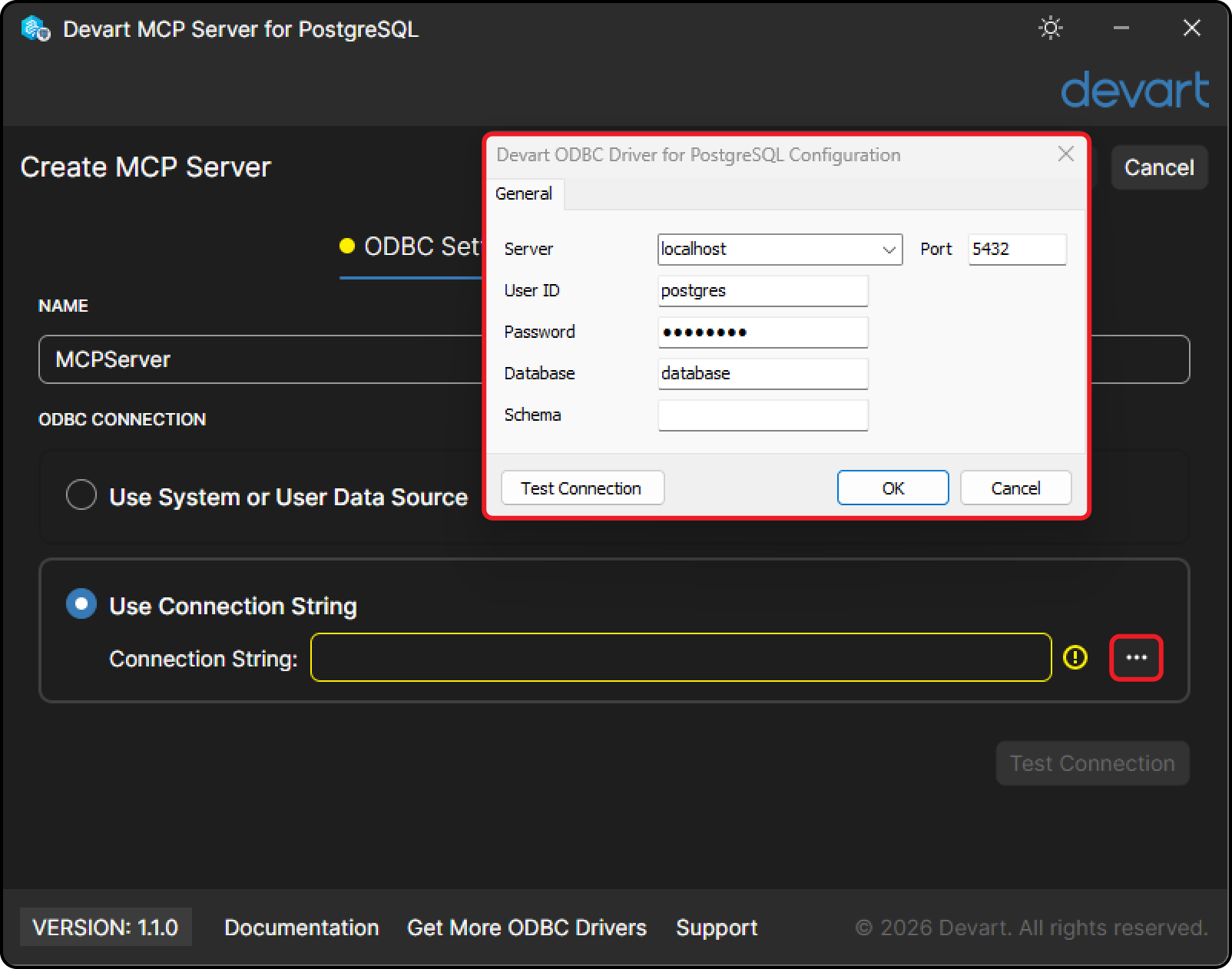
You do not have to hand-write the string. The dialog builds it.
DRIVER=Devart ODBC Driver for PostgreSQL;LoginPrompt=Never;Data Source=localhost;Database=your-database;User ID=postgres;Password=your-password;EnablePgTimeStamps=0Click Test Connection before you leave the page. On the MCP Settings tab, leave the transport on stdio. Save, then start the connection from the list.
The same screen can also use a DSN, an mcpserver.json file or the command line. Those paths are in Configure a connection.
Register an Assistant
The NuGet tool does not have a Register button. You add a config file and the assistant starts the process.
In Visual Studio that file is .mcp.json in the solution root. In Visual Studio Code, open mcp.json from the Command Palette with MCP: Open User Configuration. The JSON is the same in both.
{
  "servers": {
    "MCPServerPostgres": {
      "type": "stdio",
      "command": "dnx",
      "args": [
        "Devart.Mcp.PostgreSql@1.1.0",
        "run",
        "MCPServerPostgres"
      ]
    }
  }
}
In Visual Studio Code the server shows up under Extensions, MCP Servers. In Visual Studio it shows up in the Copilot Chat tools menu.
On .NET 8 or .NET 9, set command to devart-mcp-postgresql and drop the package argument. The args are run, then the profile name.
Cursor uses a different root key, mcpServers. The command is the same NuGet tool. There is no type field.
{
  "mcpServers": {
    "MCPServerPostgres": {
      "command": "dnx",
      "args": [
        "Devart.Mcp.PostgreSql@1.1.0",
        "run",
        "MCPServerPostgres"
      ]
    }
  }
}
The desktop installer can write the config for you. The connection window has an Integration tab.
Claude, Visual Studio Code and Cursor are listed there. Each of those three has a Register button.
Open the Visual Studio Code section, type MCPServerPostgres as the connector name, click Register and then Save.
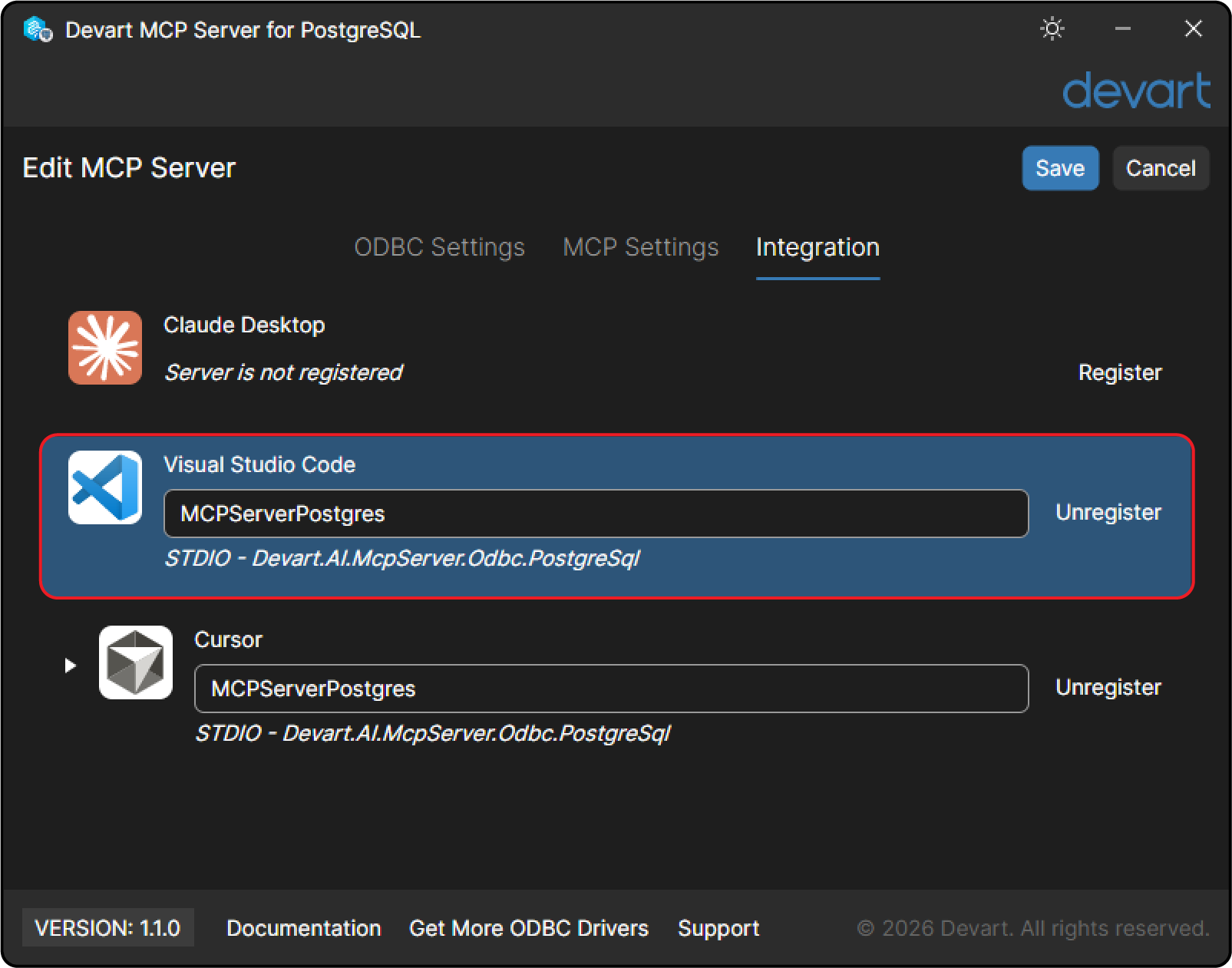
After Save, that name shows up under Extensions, MCP Servers. If it does not appear, restart Visual Studio Code.
Cursor is on the same tab. Register it the same way, with the same connector name.
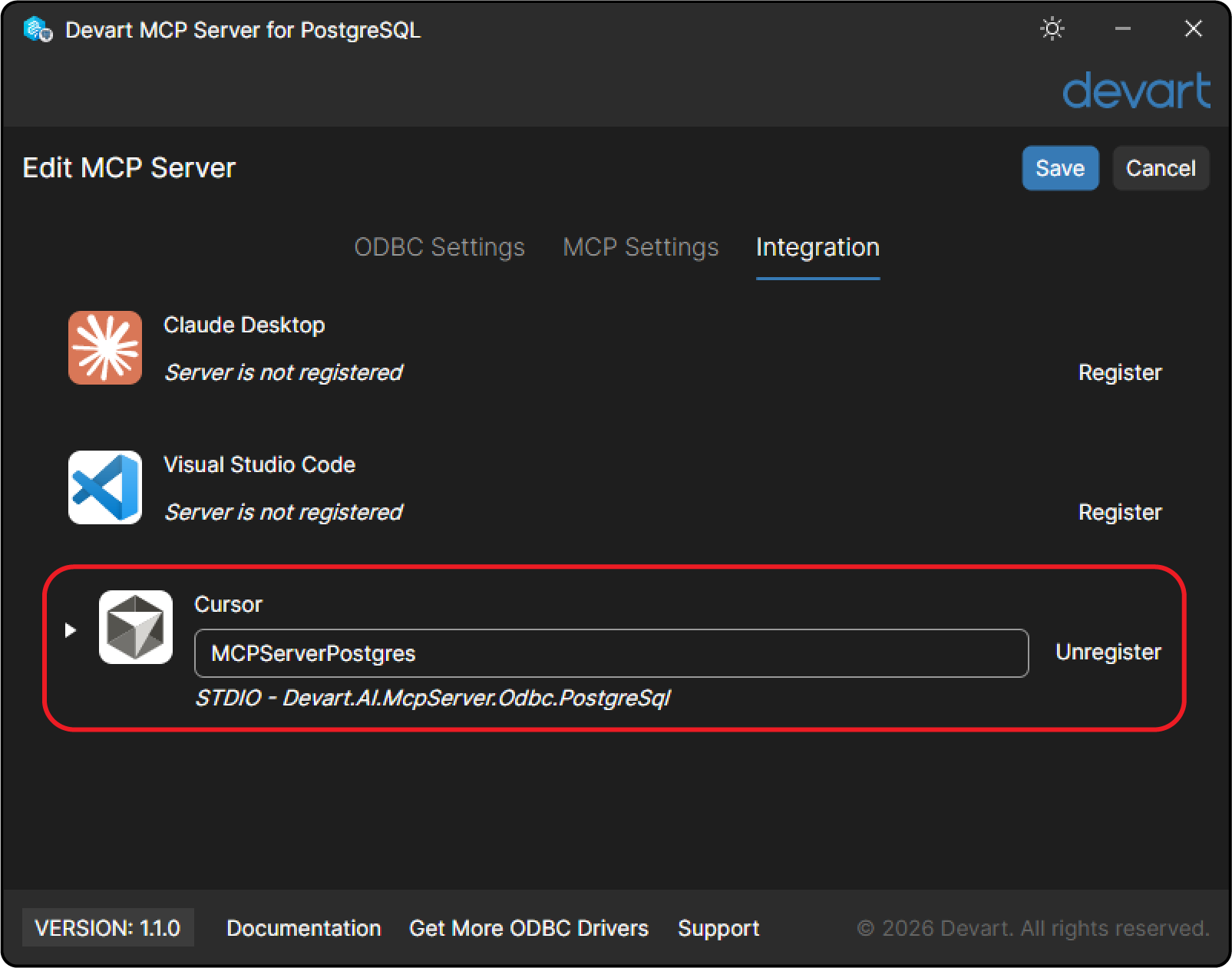
After Save, Cursor lists that name under Settings, Tools and MCPs. If it does not appear, restart Cursor.
If you add the installer entry yourself, this is the executable shape. The second argument is the connection name from the server, and the JSON key is the name the assistant shows. In Cursor that file is mcp.json.
{
  "mcpServers": {
    "MCPServerPostgres": {
      "command": "C:\\Program Files\\Devart\\MCP Server for PostgreSQL\\Devart.AI.McpServer.Odbc.PostgreSql.exe",
      "args": [
        "run",
        "MCPServerPostgres"
      ]
    }
  }
}
The connection manager path and the file path for this installer example are in Integrate with Cursor. The other assistants are covered in AI integration.
Explore the Schema
The first prompt should be about shape, not about rows. Here is what I sent in GitHub Copilot.
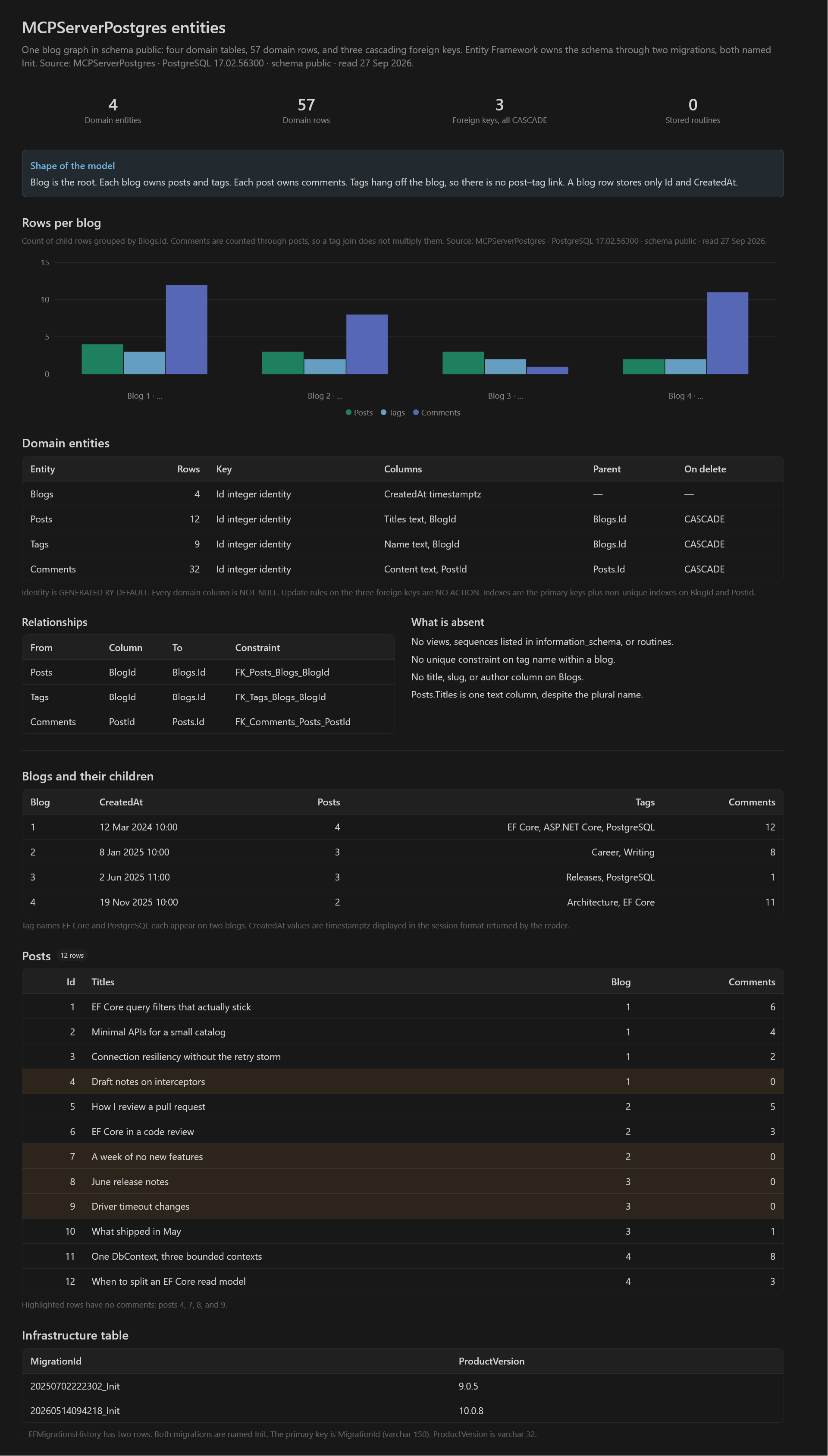
Using the MCPServerPostgres database, analyze what it has in it entity-wise and report on that.
Copilot read one public schema and four entities.
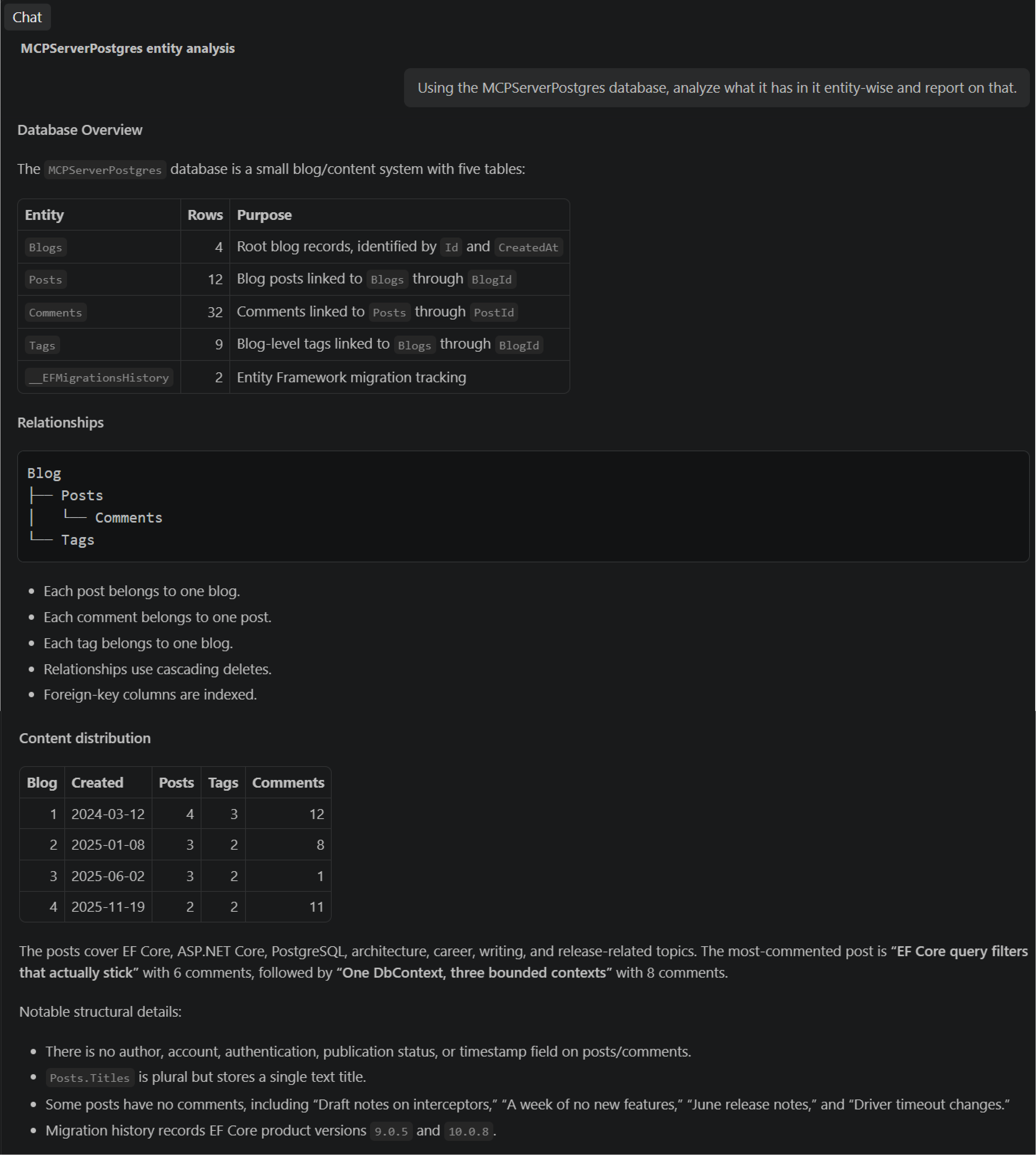
One detail only shows up because Copilot read the real columns. The post title is stored in Titles, not Title. That is the mismatch you miss when the model is guessed.
__EFMigrationsHistory is in the schema too. That table is the EF Core migration log, not a fifth entity.
Using the same prompt, I had Cursor generate this too.
A Practical Prompt
Schema in hand, I asked Copilot which blogs are actually being discussed. Here is the prompt.
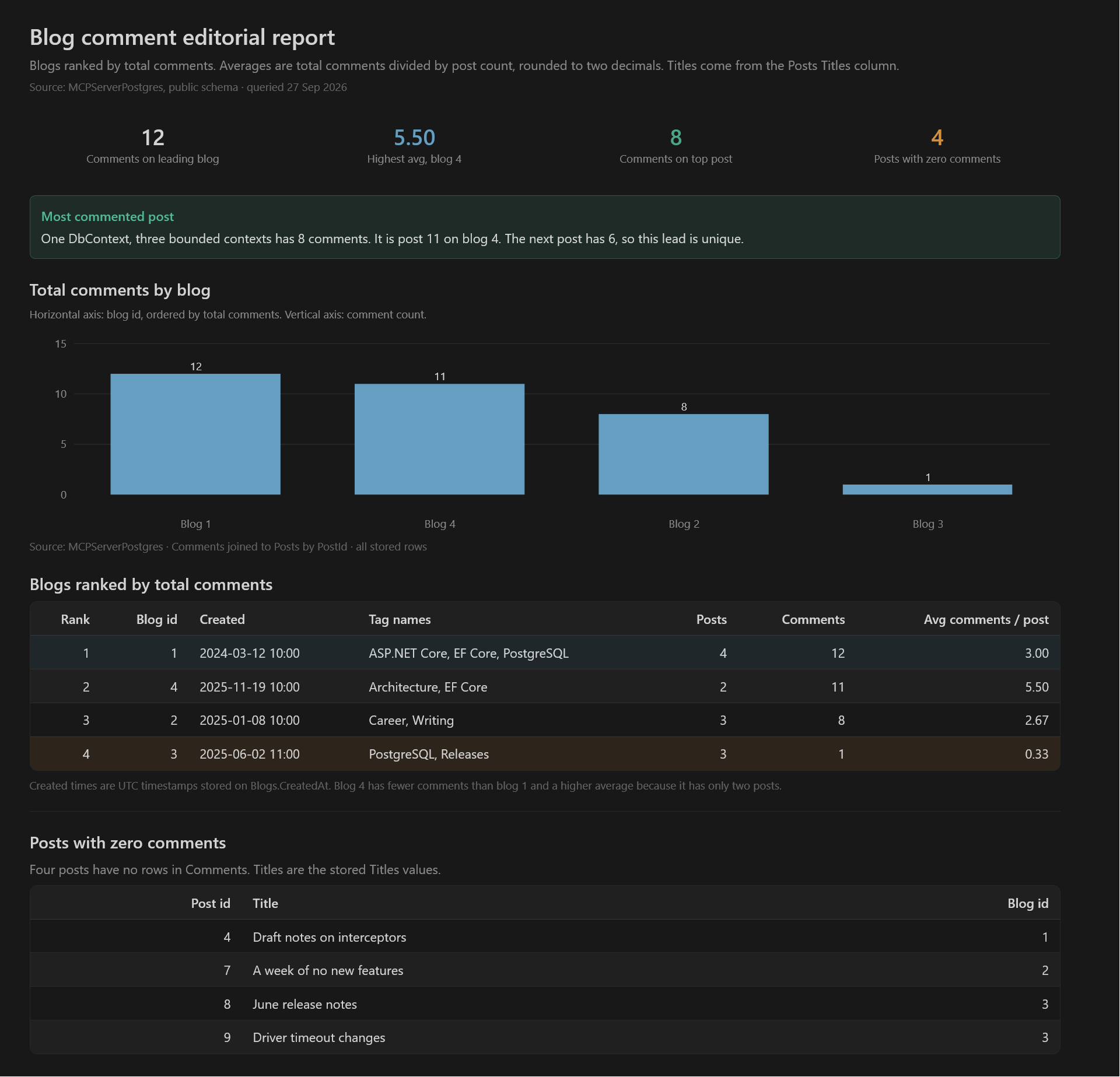
Use that database (MCPServerPostgres). I need an editorial report. For each blog show the id, when it was created, its tag names, how many posts it has, how many comments those posts have in total and the average comments per post. Rank the blogs by total comments. Then list every post with zero comments using the real title column. Name the single post with the most comments and include that title and the count.
Copilot ranked the four blogs and listed the quiet posts by the Titles column.
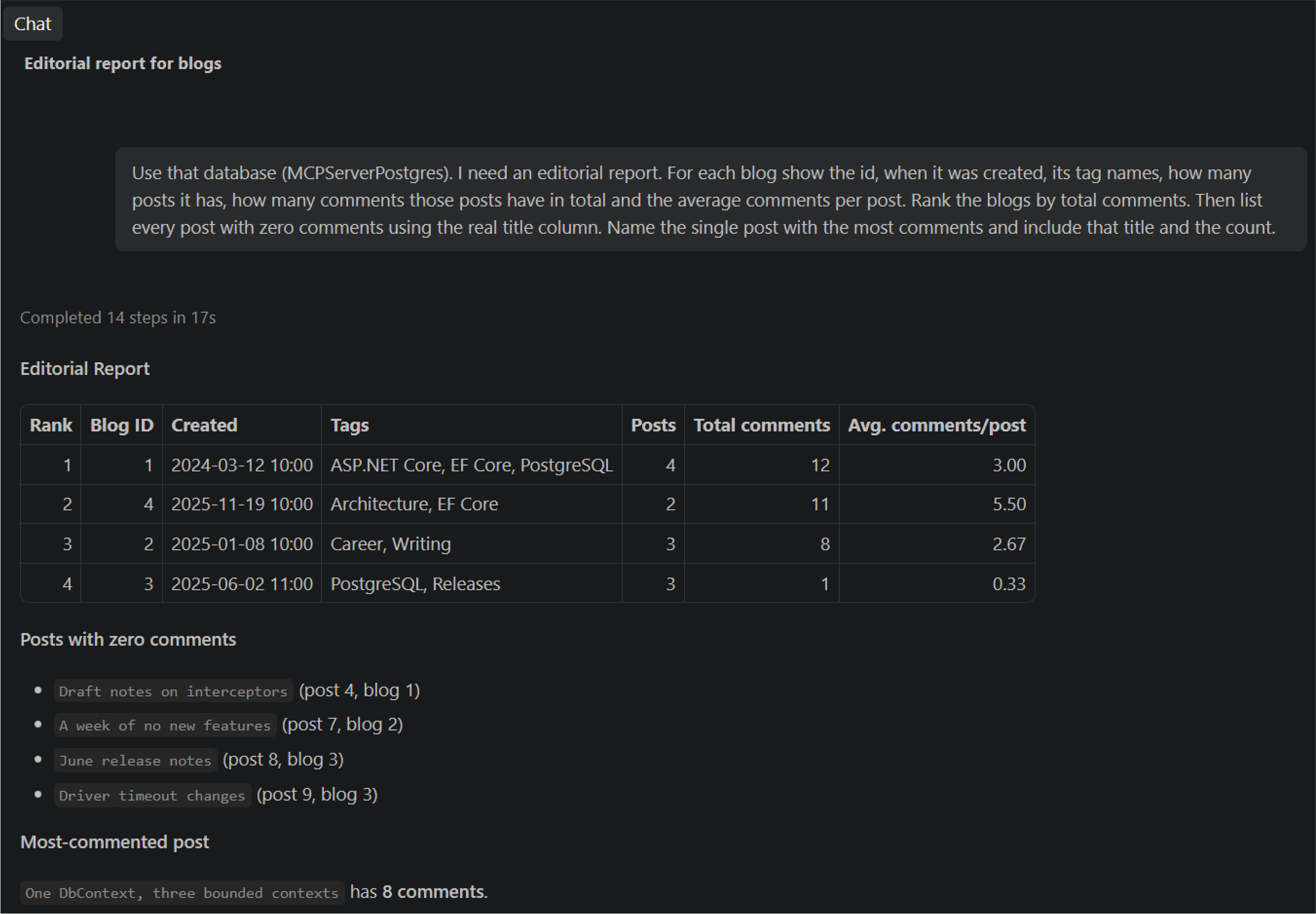
The blog with the most comments is not the blog where each post gets the most discussion. Blog 4 wins on average. Blog 1 wins on total.
Using the same prompt, I had Cursor generate this too.
A Tag Check
Tags sit on the blog, not the post, so a title can talk about a topic the blog is not tagged with. I asked Copilot for that mismatch.
Use that same database. Which posts mention EF Core in the title, and does the parent blog actually have an EF Core tag? For each one show the blog id, the real title, the blog's tags, the comment count and whether the tag is present.
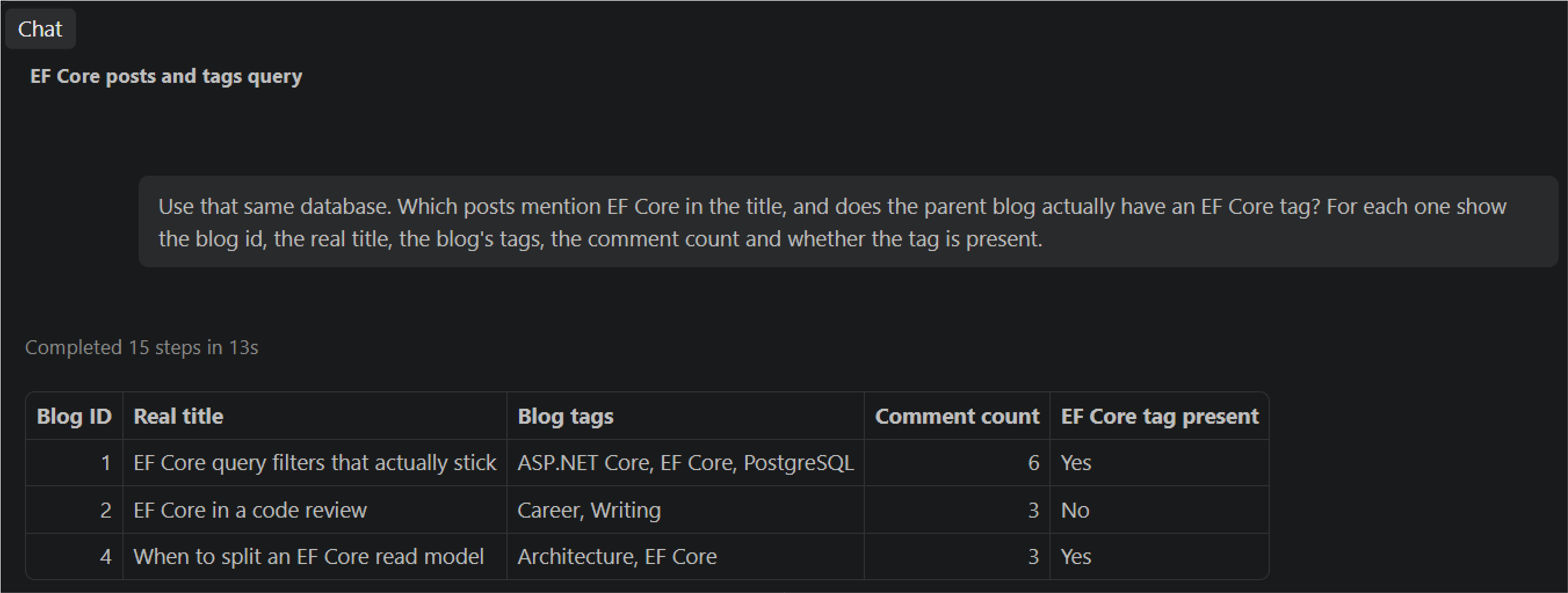
A guessed Title column, or a tag collection on the post, would have missed that row.
Using the same prompt, I had Cursor generate this too.
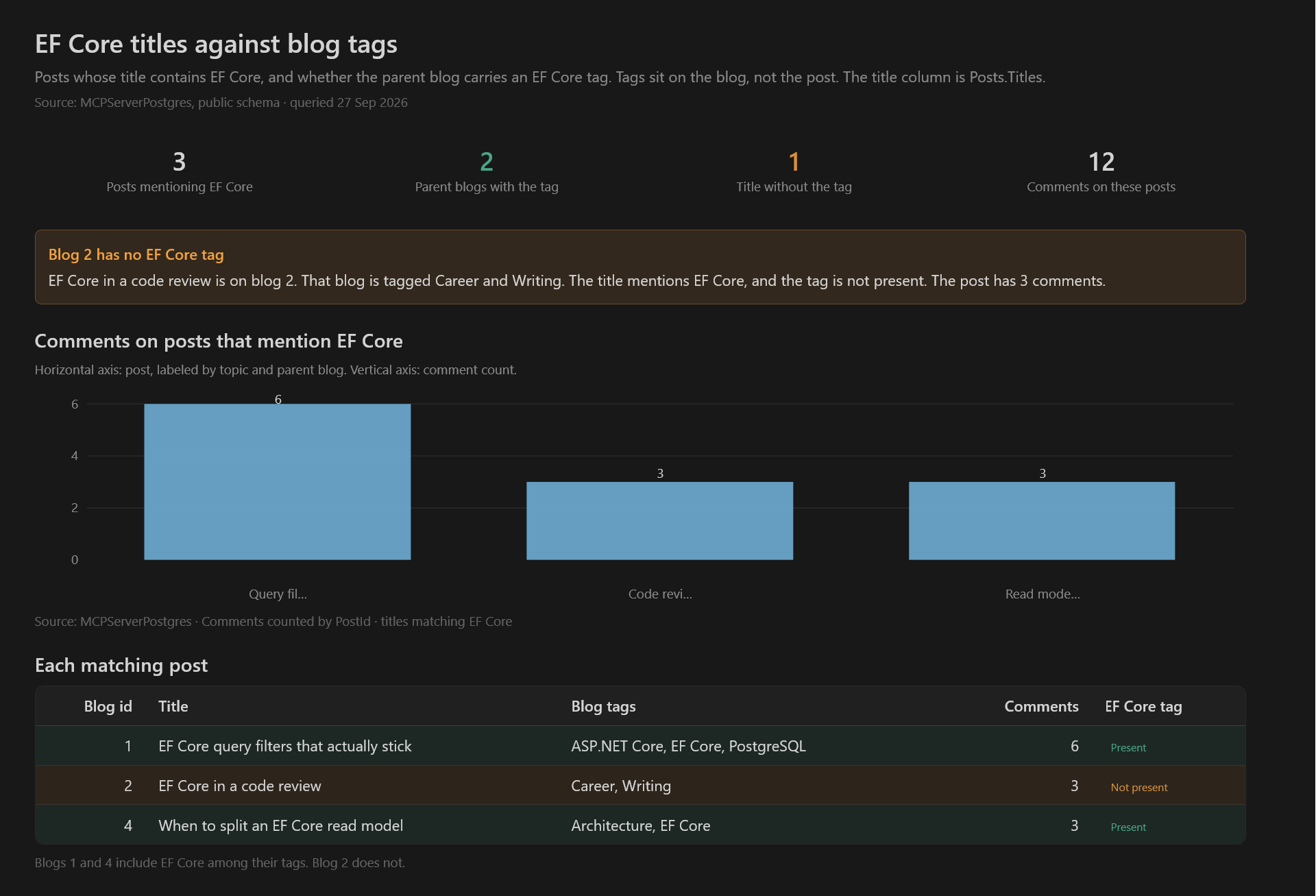
I still treat the answer as a draft. Ask for the SQL, read the filters and only then accept the table. The chat is a faster way to find the query. It is not a reason to skip reading it.
NOTE: This server can also run statements that change data. For exploration I would point it at a copy of the database, or a login that can only read. Keep the connection string in the profile, not in the prompt.
Generated Code
Once the question is settled, ask for the EF Core shape you want to keep. Blog, Post, Comment and Tag follow the tables Copilot just read.
public sealed class Blog
{
    public int Id { get; set; }
    public DateTimeOffset CreatedAt { get; set; }
    public ICollection<Post> Posts { get; set; } = new List<Post>();
    public ICollection<Tag> Tags { get; set; } = new List<Tag>();
}

public sealed class Post
{
    public int Id { get; set; }
    public string Titles { get; set; }
    public int BlogId { get; set; }
    public Blog Blog { get; set; } = null!;
    public ICollection<Comment> Comments { get; set; } = new List<Comment>();
}

public sealed class Comment
{
    public int Id { get; set; }
    public string Content { get; set; }
    public int PostId { get; set; }
    public Post Post { get; set; } = null!;
}

public sealed class Tag
{
    public int Id { get; set; }
    public string Name { get; set; }
    public int BlogId { get; set; }
    public Blog Blog { get; set; } = null!;
}
ApplicationDbContext exposes a set for each table. BlogId, PostId and the navigations are enough for EF Core to pick up the relationships. Tags belong to the blog, so Post has no tag collection.
public class ApplicationDbContext(DbContextOptions options) : DbContext(options)
{
    public DbSet<Blog> Blogs { get; set; }
    public DbSet<Post> Posts { get; set; }
    public DbSet<Comment> Comments { get; set; }
    public DbSet<Tag> Tags { get; set; }
}
The same rules from the prompt become two queries. Rank each blog by comment count, then list the posts that have no comments. The title has to come from Titles.
var editorial = await context.Blogs
    .Select(blog => new
    {
        blog.Id,
        blog.CreatedAt,
        Tags = blog.Tags.Select(tag => tag.Name).ToArray(),
        PostCount = blog.Posts.Count(),
        CommentCount = blog.Posts.Sum(post => post.Comments.Count()),
        AverageCommentsPerPost = blog.Posts.Average(post => (double?)post.Comments.Count())
    })
    .OrderByDescending(row => row.CommentCount)
    .ToListAsync();

var quietPosts = await context.Posts
    .Where(post => !post.Comments.Any())
    .OrderBy(post => post.BlogId)
    .ThenBy(post => post.Titles)
    .Select(post => new { post.BlogId, post.Titles })
    .ToListAsync();
Those queries are the part worth keeping. The chat found them against the live schema. The ASP.NET Core app is where they should live after you have read them.
If you want a visual designer for the EF Core model itself, I have a post on Entity Developer and dotConnect.
Conclusion
A local MCP server removes the guesswork from database work in an assistant chat.
Install the PostgreSQL tool, point it at the database and register it with the assistant you already use. I used GitHub Copilot in Visual Studio Code. Read the SQL, then keep the query in code.
The data stays on your machine. The names in the answer are the names in the database.
MCP Server for PostgreSQL is the ODBC connector from the desktop installer.
dotConnect for PostgreSQL is the ADO.NET provider. Its installer includes the MCP server sample.
Devart MCP servers on NuGet is the list of ready-made .NET tools, including the PostgreSQL package used above.
If you want to check out examples I created, you can find the source code here:
Source CodeI hope you enjoyed it, subscribe and get a notification when new blog is up!